Microsoft Office 365 Update for Students Follow

In this article:
Students running older versions of Microsoft Office will begin to see messages about software changes on their laptop.
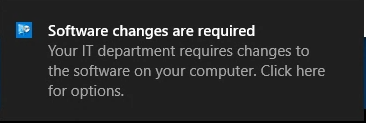
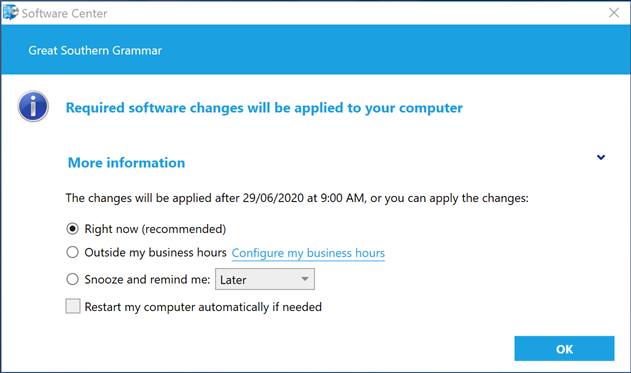
This message comes from the IT Department and is intended to keep your computer up to date.
If you'd like to install the update at a time of your own choosing for minimal disruption, follow the steps below.
If you're unsure what to do, that's okay - the update will automatically install from the 29th of June 2020. Be aware that this may interrupt your workflow and mean you can't use certain programs for a short period of time, so please plan accordingly.
Here's what to do when you see this message.
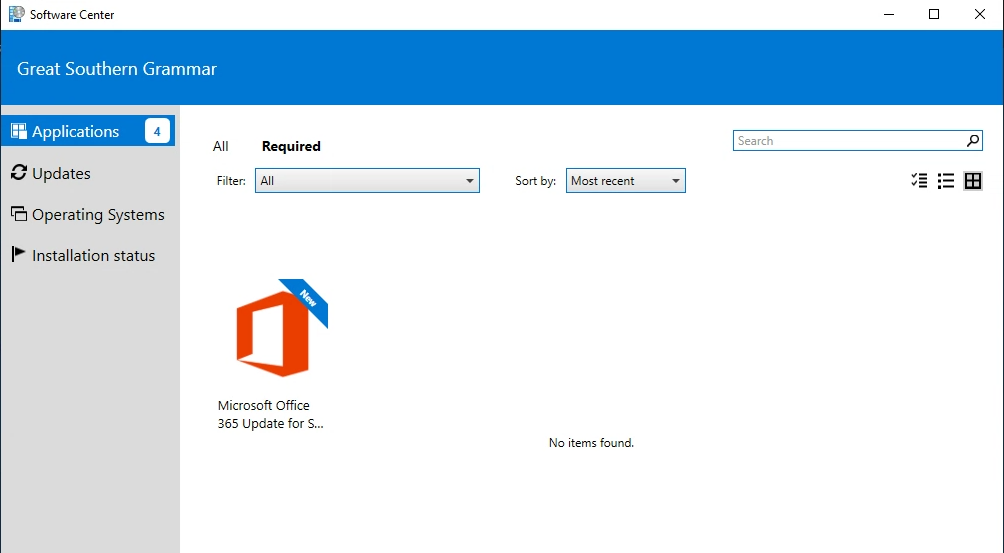
- Click on the message to open Software Center, or alternatively search for Software Center in the start menu.
- Click on the Required tab in bold and choose the Microsoft Office 365 Update for Students
- In the next screen, choose Install.
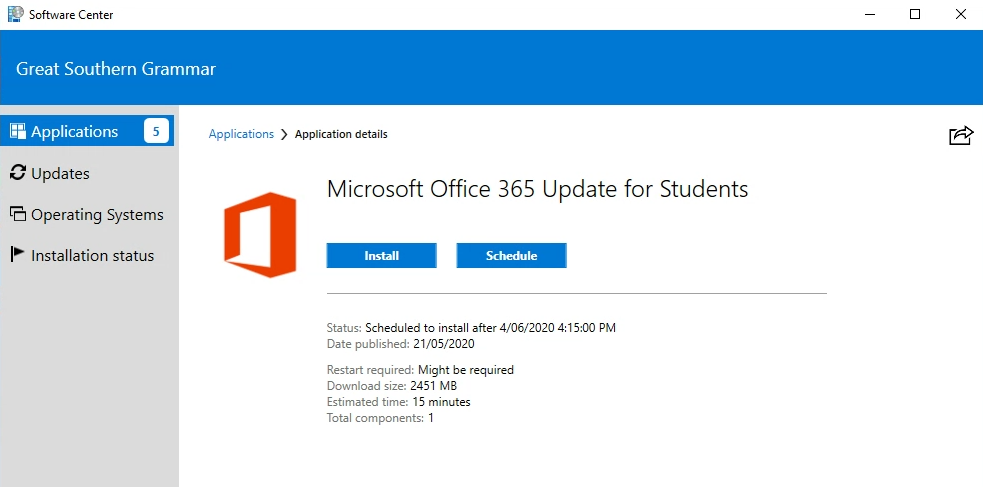
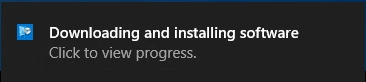
- This will start the download process, and the message below will pop up
- Once downloaded, the install process will begin with this window.
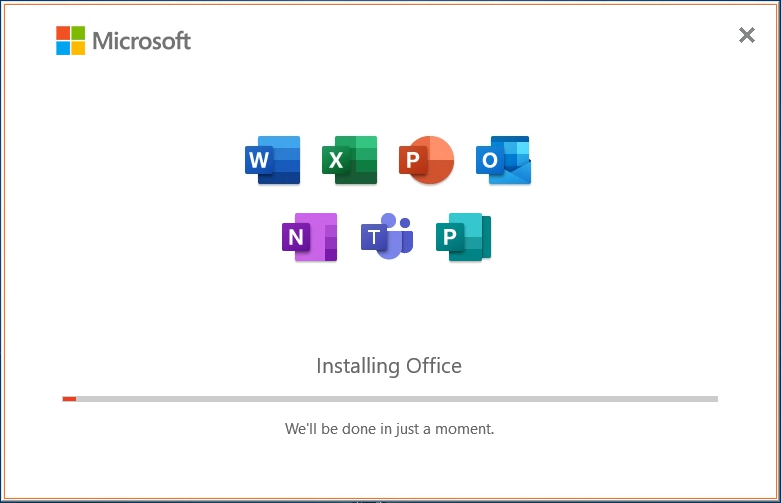
- You will be notified when the install is complete. Your shortcut icons will have the new look as well. You are now up to date and ready to use the new Microsoft Office!
Comments
0 comments
Please sign in to leave a comment.